

Extract Pages from a PDF — Free & Private
Pull specific pages or ranges out of a PDF into a brand-new file in seconds, right in your browser. Your file is never uploaded. No accounts, no watermarks, no limits.
📤 Extract PDF pages now →How to extract pages from a PDF for free
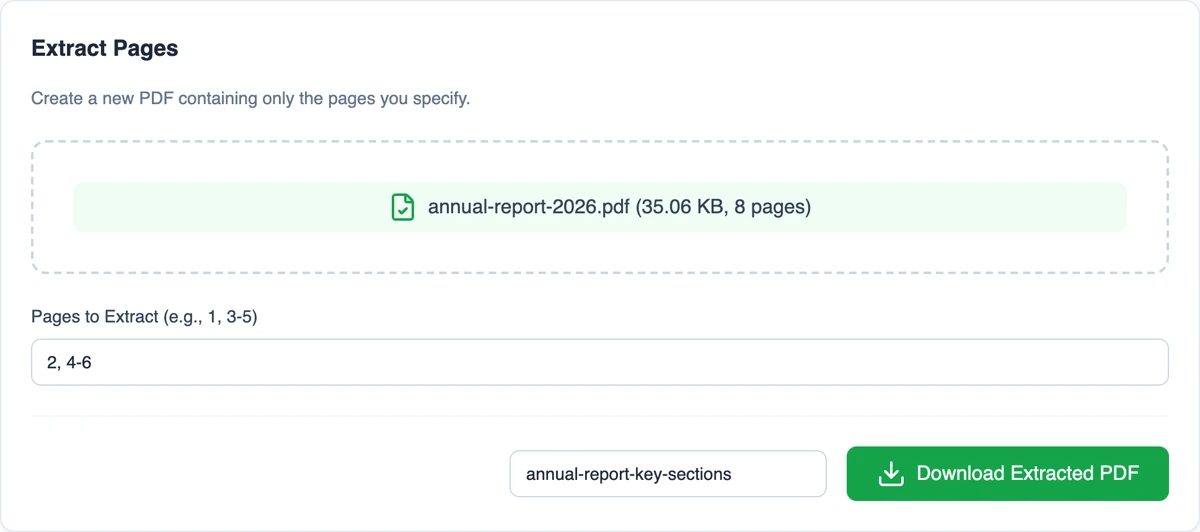
- Open the Moriaki extract-pages tool in your browser.
- Drag and drop your PDF.
- Enter the pages or ranges to keep — for example 1, 3-5.
- Click Extract and download the new PDF with just those pages.
Why extract PDF pages with Moriaki?
Sometimes you only need a few pages out of a long document — a single chapter, a specific form, or a couple of statements. Moriaki copies just those pages into a new PDF locally in your browser, so the original never leaves your device.
Specify exactly what to keep with simple ranges, and get a clean new file — no watermark, no page cap, no sign-up.
How to write a page range
Type the numbers you want to keep in the box, separated by commas. You can mix single numbers and ranges in one go:
3 keeps only number 3.
2-6 keeps everything from 2 up to and including 6.
1, 4, 9-12 keeps 1, 4, and 9 through 12.
A few details are worth knowing. The new file always follows the order of the original document, so typing 5, 1 gives you 1 and then 5. Repeated numbers are only included once. Numbers beyond the end of the document are skipped, and a range has to go from low to high: 4-2 won’t select anything, so write 2-4 instead.
When pulling out a section helps
Sending only what’s needed. Someone asks for your latest bank statement, but the bank gave you a whole year in one file. Send just the month they asked for and keep the rest private.
Sharing one chapter. Pass a single chapter of a report, thesis or manual to a colleague without sending the entire document.
Forms and applications. Many online portals want one signed form, not the long pack it came in. Keep just the form and upload a smaller, tidier file.
Smaller attachments. A shorter document is usually a smaller file, which helps with email size limits. To shrink it further, run the result through the Compress tool.
Choosing the right tool
Moriaki has three tools that work with parts of a document, and each one suits a different job:
This tool copies the parts you choose into one new file and leaves the original untouched.
Split breaks a document into separate files, one for each part.
Delete removes the parts you don’t want and keeps everything else, which is quicker when you need most of the document.
A simple rule of thumb: if you want a short selection, copy it out with this tool. If you want almost everything, delete the few parts you don’t need. And if you want the same content in a different order, use Organize.
Private by design
Bank statements, contracts and medical letters are exactly the kind of files people need to trim, and exactly the kind you shouldn’t upload to a stranger’s server. Moriaki copies the parts you choose inside your browser, on your own device, so nothing is sent anywhere. Once the tool has loaded, it even keeps working with your internet connection turned off.
Want to know how that works? Read How Moriaki PDF Works and The Hidden Dangers of Free Online Utilities.
Good to know
Your original stays as it was. The tool creates a brand-new file. Nothing in the original document is changed or removed.
No loss of quality. In this file format, each part of a document is stored as its own self-contained object (see the Library of Congress format description or Wikipedia’s overview of the format), so the tool copies it as it is instead of re-drawing it. Text stays sharp and searchable, and images keep their original quality.
Give the new copy a clear name. Use the filename box next to the download button, for example “statement-march”. If you leave it empty, the original name is reused with a short prefix in front.
Document properties start fresh. The new file doesn’t carry over the original’s title or author. To set them, use the metadata tool.
Bookmarks aren’t copied. Everything you can see is copied exactly, but the clickable outline that some long documents have isn’t carried over to the new file.
Frequently asked questions
Is extracting PDF pages free?
Yes — free, with no account, no limits, and no watermark.
Is my file uploaded?
No. Pages are extracted entirely in your browser; your PDF never leaves your device.
How do I choose pages?
Enter page numbers or ranges, such as 1, 3-5, and the tool builds a new PDF with exactly those pages.
How is this different from splitting?
Split bursts every page into its own file; Extract pulls a chosen set of pages into one new PDF.
Does it work on mobile?
Yes — in any modern browser, with no app to install.
Can I choose the order of the new file?
Not with this tool: the selection always keeps the original order. To rearrange the result, open it in the Organize tool afterwards.
What if I type a number that doesn’t exist?
It’s skipped. If nothing in your selection exists in the document, the tool shows an error instead of creating an empty file.
Is there a size limit?
Moriaki doesn’t set one. Because everything happens in your browser, very large files depend on how much memory your device has.