

Organize PDF Pages — Free Visual Editor, 100% Private
Reorder, rotate, and delete pages by dragging thumbnails in a visual grid, right in your browser. Your file is never uploaded. No accounts, no watermarks, no limits.
🗂️ Organize PDF pages now →How to organize PDF pages for free
- Open the Moriaki visual page organizer in your browser.
- Drag and drop your PDF — every page appears as a thumbnail.
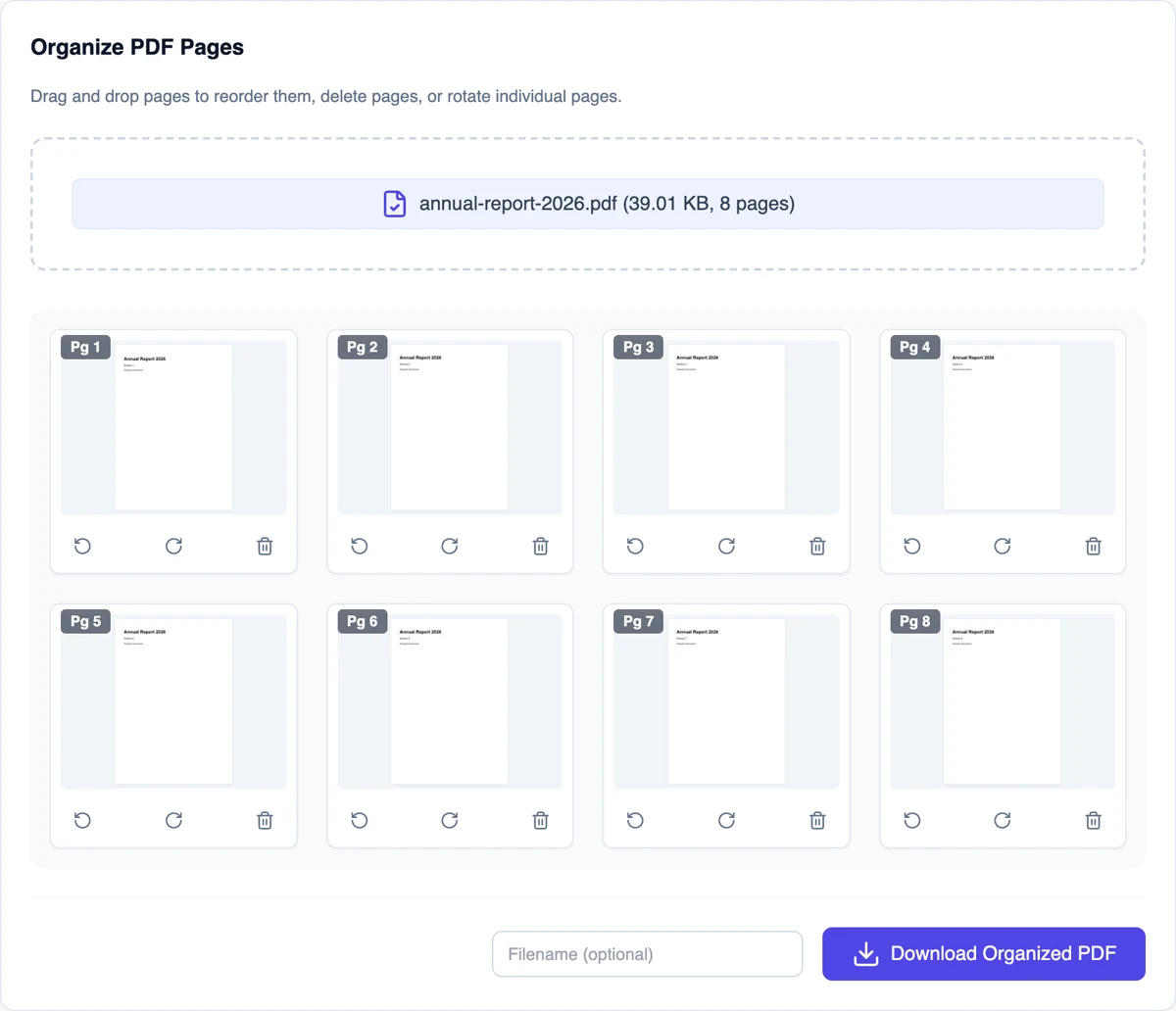
- Drag pages to reorder them, and rotate or delete any page you like.
- Click Save and download the reorganized PDF. Nothing is uploaded.
Why organize PDFs with Moriaki?
Rearranging a scanned or merged document is far easier when you can see the pages. Moriaki renders thumbnails of every page locally in your browser, so you can reorder, rotate, and remove pages visually — without uploading anything.
All your changes are compiled into a fresh PDF on download, preserving quality — with no watermark and no sign-up.
Using the thumbnail grid
After you add a document, every sheet appears as a numbered thumbnail. Drag a thumbnail to a new position to move it. The two arrow buttons under each thumbnail turn it 90 degrees left or right, and the bin button removes it.
Nothing changes in your original file. When the grid looks right, click Download and a new version is built in the exact order and orientation you see.
When rearranging helps
Scans in the wrong order. Put a document back in sequence after scanning it out of order.
Sideways or upside-down sheets. Turn just the ones that need it and leave the rest alone.
Blank or duplicate sheets. Remove the empty backs of double-sided scans and any copies you don’t need.
After combining files. Join several files with Merge, then move the appendix or cover sheet to exactly where it belongs.
Choosing the right tool
This tool is best when you want to see what you are doing. For other jobs, a dedicated tool can be quicker:
Rotate turns every sheet at once. Use Rotate for a document scanned entirely sideways.
Delete removes sheets by number, which is faster in a very long document. Use Delete.
Extract copies a few sheets into a new file. Use Extract when you need just a selection.
Private by design
Scanned contracts and statements are exactly the kind of documents that end up out of order. Here, the thumbnails are drawn and the new file is built inside your browser on your own device, so nothing is sent anywhere. Once the page has loaded, it even keeps working without an internet connection.
Read how that works in How Moriaki PDF Works, or why it matters in The Hidden Dangers of Free Online Utilities.
Good to know
No loss of quality. Sheets are copied as they are, not re-drawn, so text stays sharp and searchable. The file format stores each one as a self-contained object (see the Library of Congress format description).
Name the new copy. Type a name in the filename box before downloading. Otherwise the original name is reused with a short prefix.
Long documents. Thumbnails are drawn on your device, so a very long document may take a few seconds to appear.
Fresh document properties. The new file doesn’t keep the original title or author. Set them with the metadata tool if needed.
Frequently asked questions
Is organizing PDF pages free?
Yes — free, with no account, no limits, and no watermark.
Is my file uploaded?
No. Thumbnails are rendered and pages are rearranged entirely in your browser.
What can I do in the organizer?
Reorder pages by drag-and-drop, rotate individual pages, and delete pages you don’t need.
Are my changes saved into a new PDF?
Yes — when you save, a new PDF is built in the exact order and rotation you set.
Does it work on mobile?
Yes — in any modern browser, though a larger screen makes drag-and-drop easier.
Can I turn just one sheet?
Yes. Use the arrow buttons under its thumbnail. The rest stay as they are.
Will the quality change?
No. Everything is copied as it is, so text and images look exactly the same.
Can I combine several files here?
Join them with Merge first, then arrange the result here.